




Client feedback pinned to the live prototype.
Send your client a link to the prototype you built. They click anything on it and leave a comment right there, on the running app.
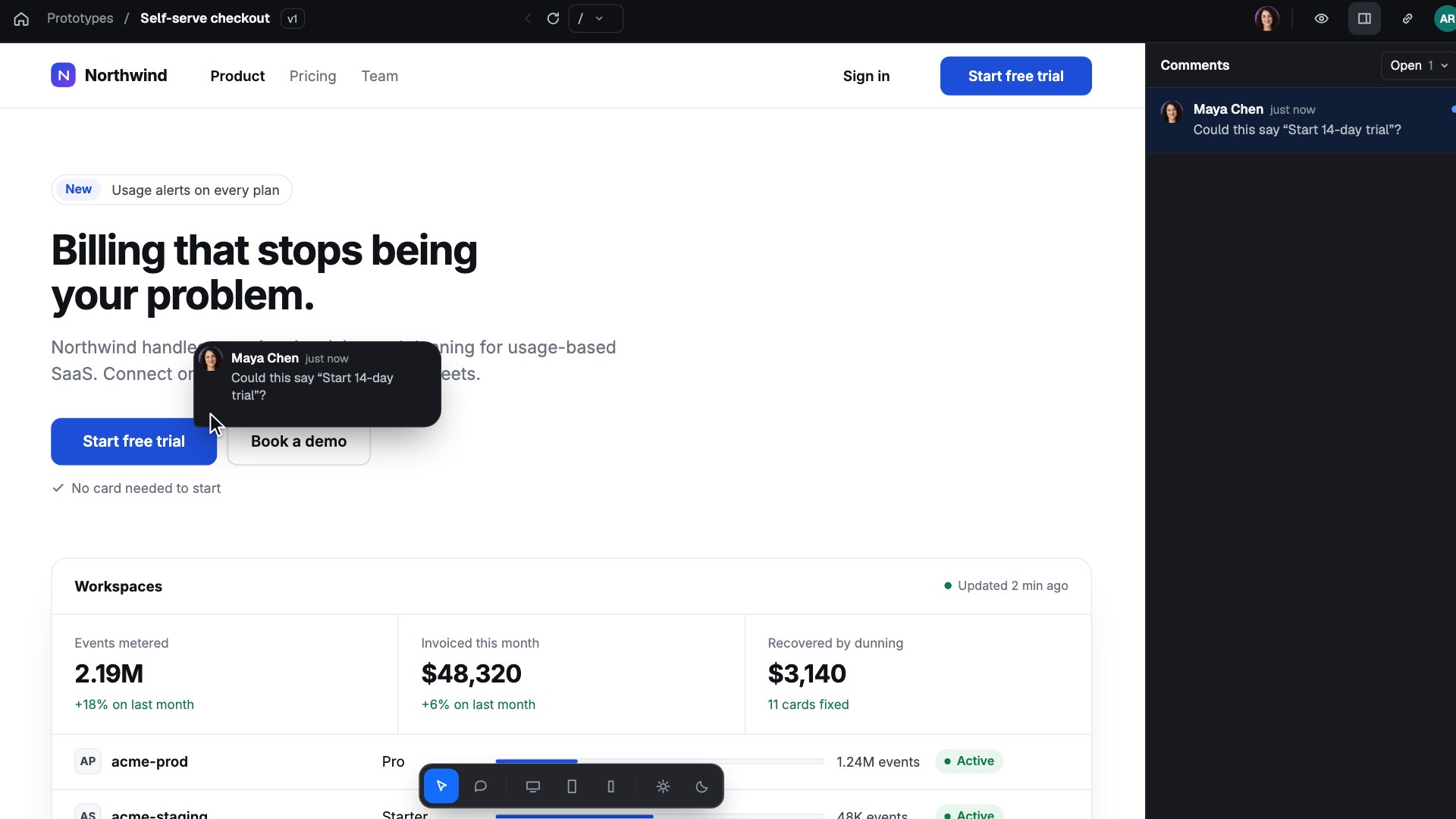
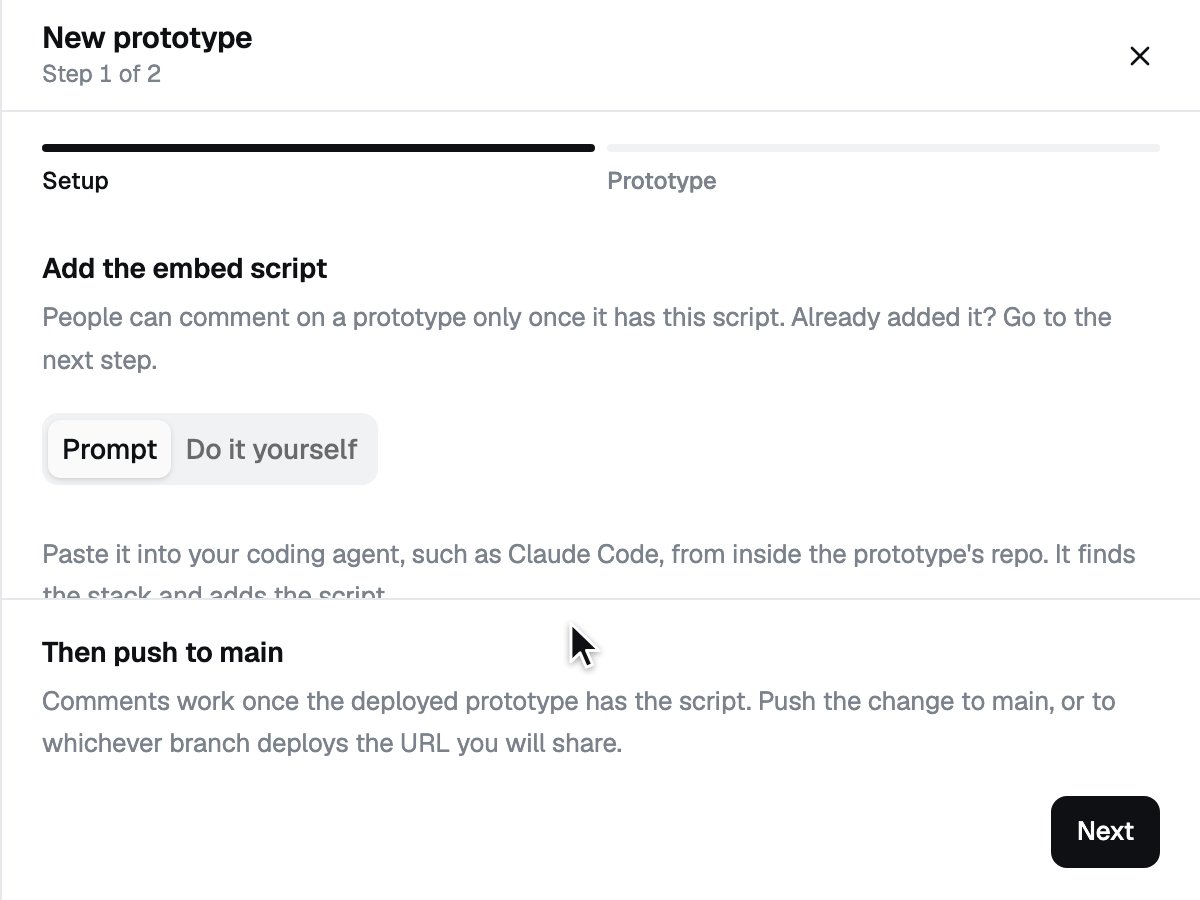
Three steps to the first comment
Step 1
Add one script to your prototype.
It works with any web prototype: Next.js, Vite, plain HTML, or whatever your AI tool built.
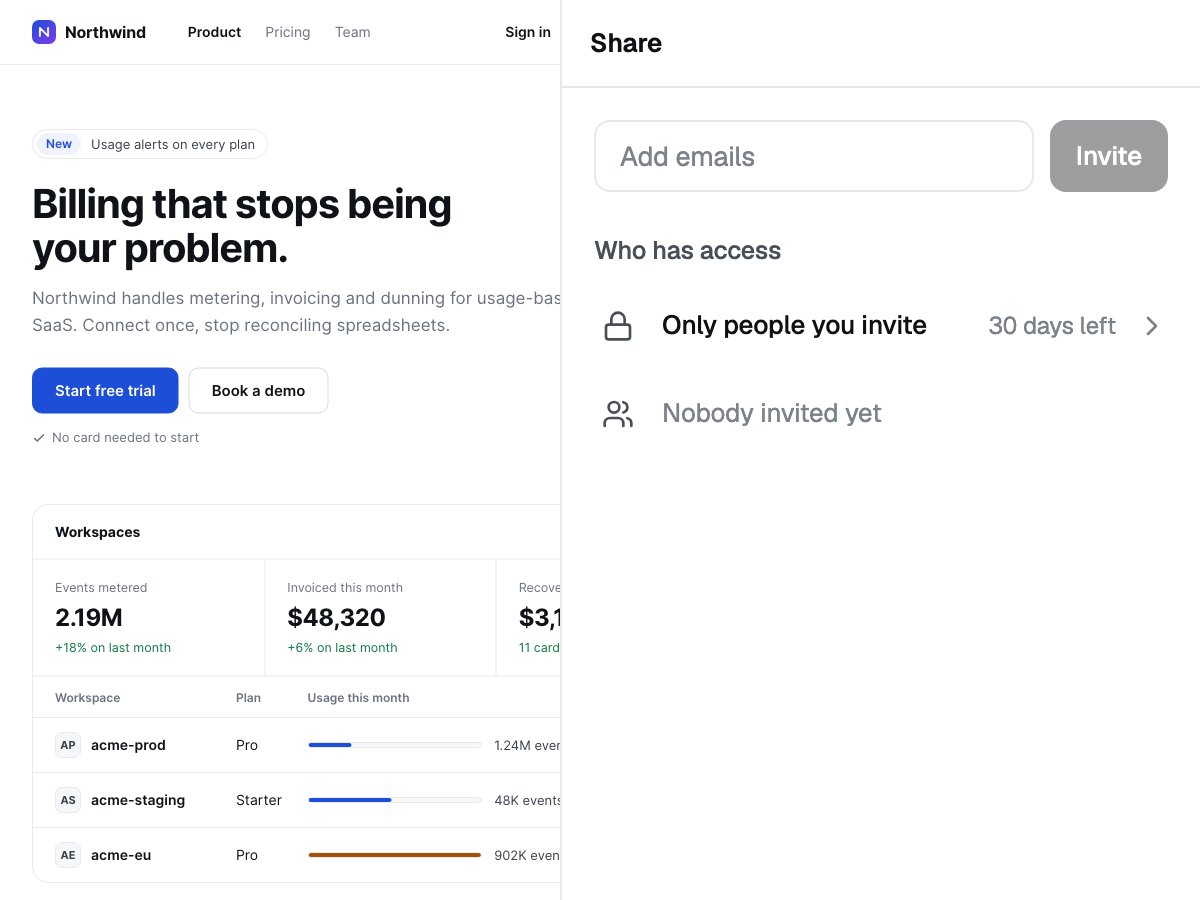
Step 2
Invite your client.
Add the people who should see it and send them the link.
Step 3
Read their comments where they left them.
Each comment opens on the screen and the element it was written about.
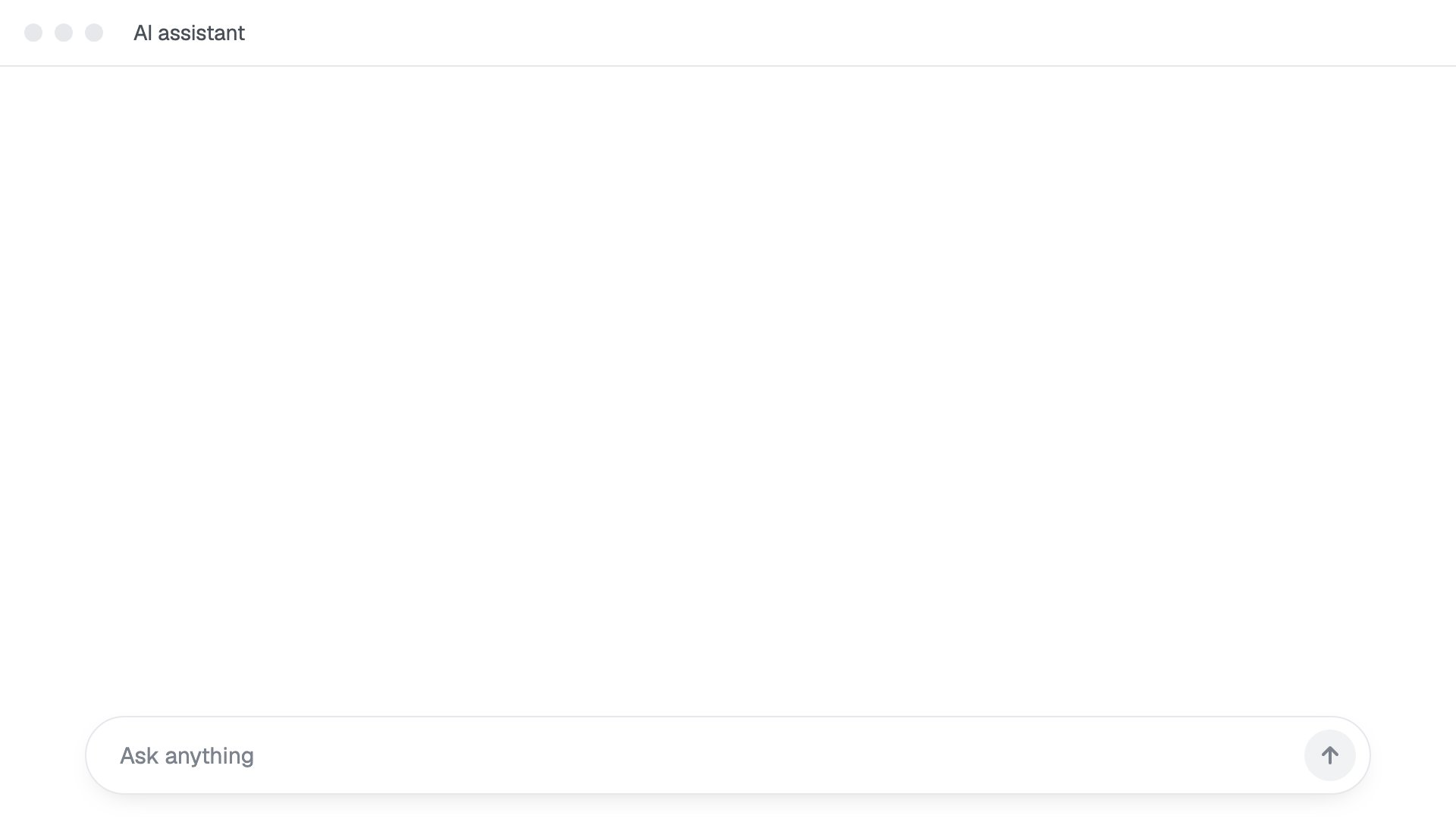
Ask your AI assistant what your client said
Connect Commmenty to your AI assistant through its MCP server. It reads the comments on your prototypes and drafts your replies. Each comment records the element it was left on, so your agent makes precise changes.
Questions studios ask
How do I get started?
Request access with your email and tell us what you work on. We usually answer within 24 hours, and when we approve it, we email you a link to create your account. Then add the script to your prototype and share it.
What does it cost?
Nothing. The free plan includes one prototype, as many people and comments on it as you need, and 20 calls a day from a connected AI assistant.
Does it work with my prototype?
If it runs in a browser, yes. Add one script to a Next.js, Vite or plain HTML prototype, or to whatever your AI tool built.
Who can see my prototype?
You choose for each one. A private prototype opens only for the people you invite. A public one opens for anyone with its link, signed in or as a guest with their email. You can switch access off at any time, let it end after 7, 30 or 90 days, or keep it open with no end date. A prototype can also require an access key in its address: Commmenty generates the key, and your prototype checks it before it loads.
Do my clients need an account?
No. They open the link in a browser on their computer and comment as a guest with their email address. If they create an account later, their comments show their name and every prototype shared with them is in one list.
Does it work on a phone?
Not yet. You and your clients use Commmenty in a browser on a computer. On a phone it asks you to switch to a computer.
Can I invite a whole team at once?
Yes. Put people in a team once, then pick the team when you share a prototype and tick everyone or only some of them. Your teams are visible only to you, and being in one opens nothing by itself. The People page lists everyone you share with and what each person can open.
Can we go through it together?
Yes. Everyone who has the prototype open sees the others' cursors. Follow someone and your view goes where theirs goes, at the size of their window.
What happens to a comment when I change the page?
A comment is attached to the button, row or heading the client clicked, so it follows that element. If the element is gone, the comment says it may have moved. When you publish a new version, the link stays the same and each comment stays on the version it was left on.
How do I keep up with replies?
New replies appear for both sides as they arrive. An unread pin keeps its author's colour until you open it. Resolve a thread when it's done; it leaves the prototype and stays in its history. You can resolve, reopen or mark several threads as read at once.
Does the AI assistant change my code?
Not by itself. The MCP server lists your prototypes, reads their threads and saves or sends replies; it never touches your files. Each comment carries the element it was left on, so a coding agent you run, such as Claude Code or Cursor, can find and edit the right component. A reply goes out only when you tell it to.
Can I take my data out or delete my account?
Yes. In Settings, under Your data, you can download a JSON file with your profile, prototypes, versions, comments and teams, or delete your account.